How to Cut Shopify App Bloat and Speed Up Your Store

Many Shopify stores grow by adding apps for new features, but each app can add code, requests, and weight to your pages. Over time this bloat slows down load times, frustrates visitors, and can hurt sales. The good news is that you can audit your app stack, remove what you don’t need, and replace heavy apps with lighter solutions without losing functionality.
Why App Bloat Matters
Every app you install may inject JavaScript, CSS, or external libraries into your theme. Even if an app only runs on a specific page, its code often loads site‑wide. This increases the number of HTTP requests, adds render‑blocking resources, and raises the total page weight. Slower pages lead to higher bounce rates and lower conversion rates, especially on mobile connections.
Shopify’s own performance guidance notes that keeping the number of third‑party requests low is one of the most effective ways to improve speed. While apps provide useful features, they should be evaluated like any other piece of code: keep it if it adds clear value, remove it if the benefit is marginal.
How to Audit Your Shopify Apps
A systematic audit helps you see exactly what each app contributes and where overlaps exist.
Step 1: List Installed Apps
Go to Shopify Admin → Apps. Make a simple spreadsheet with columns for app name, purpose, cost, and where it appears (storewide, product page, checkout, etc.).
Step 2: Measure Each App’s Impact
Shopify Admin → Online Store → Themes → Actions → Edit code. Open theme.liquid and look for <script> or <link> tags that reference app domains. Many apps add lines like <script src="https://cdn.exampleapp.com/app.js"></script>. Note which apps are adding resources.
You can also use the browser’s developer tools (Network tab) to see requests triggered by each app. Reload the page with and without the app enabled (if the app offers a toggle) to compare load times.
Step 3: Identify Redundancy
Ask whether two apps do the same thing. For example, you might have one app for email pop‑ups and another for exit‑intent offers that both load similar libraries. If the features overlap, pick the one that performs better or costs less and remove the duplicate.
Step 4: Evaluate Necessity
For each remaining app, consider:
- Does it directly contribute to a key goal (sales, email capture, customer support)?
- Could the same outcome be achieved with a built‑in Shopify feature or a simple Liquid edit?
- Is the app actively maintained and updated?
If the answer is no to most of these, the app is a candidate for removal.
Practical Example: A Store’s App Audit
A merchant selling home goods noticed their homepage felt sluggish, especially on mobile. They exported their app list and found 22 installed apps. By reviewing theme.liquid they saw that five apps each added a separate JavaScript file for analytics or tracking, even though the store already used Google Analytics via the native channel. Two other apps added large CSS frameworks just to style a simple banner.
The merchant decided to keep the essential apps for inventory sync and email marketing. They removed the five analytics duplicates, relying instead on the built‑in Google Analytics channel. They also replaced the two banner apps with a custom Liquid section that used the store’s existing stylesheet. After these changes, the number of external requests dropped noticeably, and the homepage felt quicker to interact with.
How to Replace Heavy Apps with Lightweight Solutions
Once you’ve identified apps to remove, look for ways to keep their functionality without the overhead.
Using Native Shopify Features
Shopify’s admin includes tools that can replace many common apps:
- Discount codes and automatic promotions replace coupon‑code apps.
- The built‑in blog and pages can host FAQs or product guides, removing the need for a separate knowledge‑base app.
- Customer accounts and order status pages can reduce the need for order‑tracking apps.
Custom Liquid Sections
If you need a unique content block—like a promo banner, a testimonial slider, or a size‑guide table—you can create a custom section using Liquid, HTML, and CSS. Because the code lives in your theme, it doesn’t add extra external requests. You can keep the section lightweight by:
- Limiting the use of external libraries; rely on CSS flexbox or grid instead of heavy UI frameworks.
- Loading any necessary JavaScript only on the pages where it’s needed, using conditional checks in the section schema.
- Optimising images and using Shopify’s image CDN for fast delivery.
Lightweight Alternatives
When a custom build isn’t feasible, look for apps that advertise themselves as "lightweight" or "no‑code". Check their impact by installing them on a development theme first and reviewing the added file size in the Network tab. Prefer apps that load assets asynchronously or only after user interaction.
Maintaining a Lean App Stack
App audits aren’t a one‑off task. Set a quarterly reminder to repeat the steps above. When considering a new app, ask the same questions you used during the audit: What specific problem does it solve? What resources will it add? Is there a simpler alternative?
Encourage your team to treat apps like any other dependency—review, test, and remove when they no longer serve a clear purpose. Over time this habit keeps your store fast, reliable, and easier to maintain.
How a Team Would Apply This
The developer would export the current app list and compare it against the theme’s asset files to spot external scripts. The marketer would review each app’s purpose against current campaigns and flag any that duplicate functionality. Together they would decide which apps to uninstall, build any needed replacements as Liquid sections, and test the changes on a staging theme before pushing live. This collaborative approach ensures the store stays fast without losing essential features.
More from the blog
 Development
How Long Does It Take to Build a Custom Website? Realistic Timelines
A realistic breakdown of custom website build timelines by project scope, the trade-offs between speed and flexibility, and the hidden…
 Development
Questions to Ask a Web Developer Before You Hire Them
Avoid unexpected costs, project delays and vendor lock-in. Here are the essential questions to ask a web developer about ownership,…
 Development
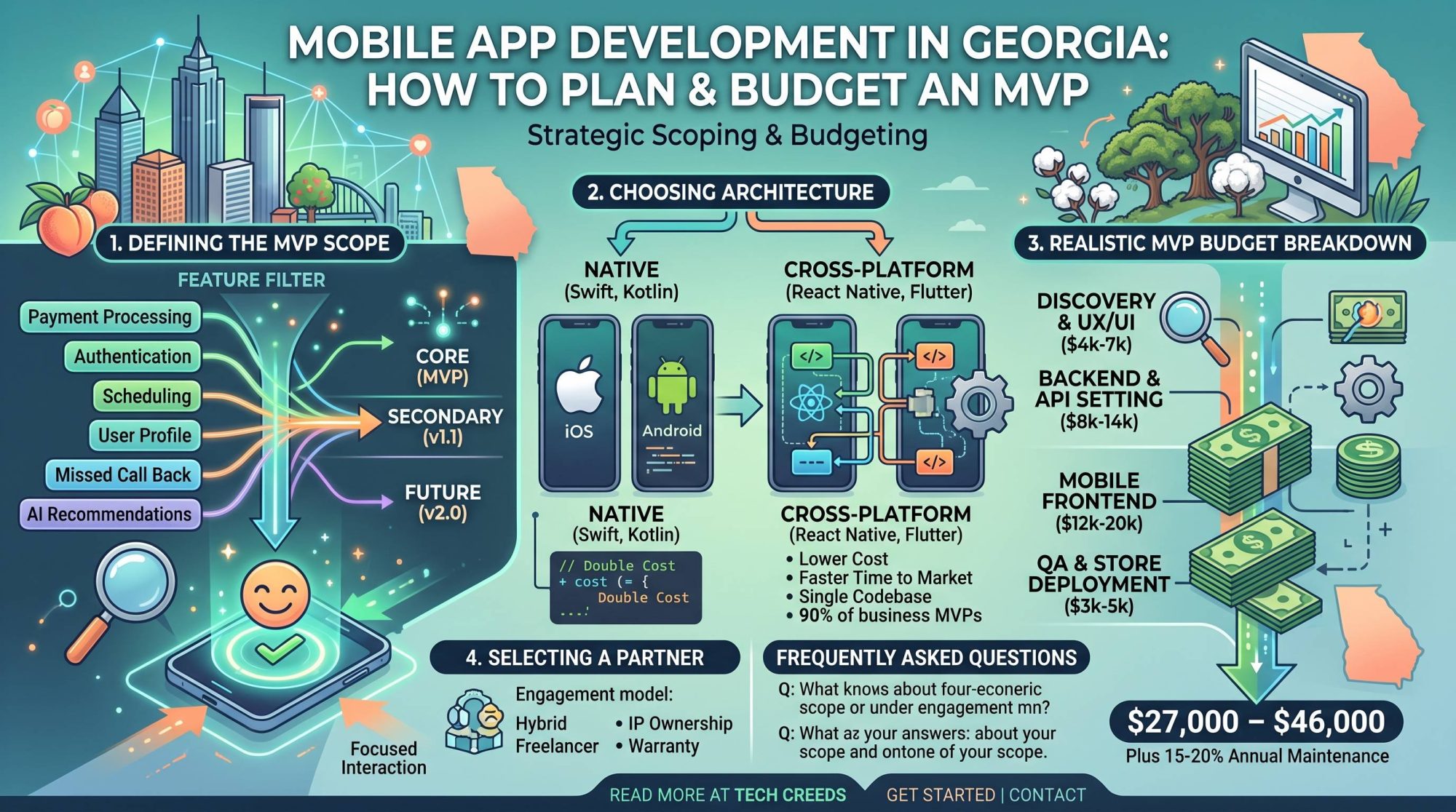
Mobile App Development in Georgia: How to Plan and Budget an MVP
A practical guide for Georgia businesses planning their first mobile app. Learn how to scope an MVP, budget realistically, and…