Custom Shopify Sections vs Apps: Which Is Better for Speed 2026

When you build Shopify custom sections using Liquid, you gain precise control over your store layout without relying on heavy third-party apps. Writing clean code keeps your pages fast and your theme maintainable.
Why build Shopify custom sections with Liquid?
Standard theme sections often limit your design choices. You end up forcing unrelated content into preset boxes.
Custom sections let you build blocks that match your exact marketing goals. If you want a specific product grid with alternating text layouts, you code it once. Your content team can then reuse it across multiple pages through the Shopify theme editor.
How Liquid connects schema settings to store data
Every custom section consists of two parts. The first part is the HTML and Liquid markup that renders on the storefront. The second part is the JSON schema at the bottom of the file.
The schema defines what fields appear in the admin sidebar. You can add text inputs, image pickers, range sliders, and product selectors.
{%- schema -%}
{
  "name": "Featured Promo",
  "settings": [
    {
      "type": "text",
      "id": "heading",
      "label": "Heading",
      "default": "Special Offer"
    }
  ],
  "presets": [
    {
      "name": "Featured Promo"
    }
  ]
}
{%- schema -%}
When a merchant changes text in the theme editor, Liquid outputs that text instantly on the live page. This keeps the backend flexible while preserving fast front-end performance.
Step-by-step guide to writing a custom section
Start by navigating to your Shopify admin, selecting your active theme, and clicking Edit Code. Under the sections directory, create a new file named custom-banner.liquid.
Add your HTML structure first. Wrap your elements in semantic tags like section and div. Use Tailwind CSS or your theme's native stylesheet to handle the styling rules.
Next, insert your Liquid objects. Instead of hardcoding a heading, use {{ section.settings.heading }}. Loop through blocks if you are building a multi-column layout.
Finally, write your schema settings at the bottom. Always include a preset object so merchants can add the section directly from the customiser without searching through hidden menus.
Avoiding common Liquid performance traps
Unoptimized Liquid loops can slow down your Time to Interactive metric. Avoid nested loops that query large metafield databases on every page load.
Limit the number of image size filters you call within a single loop. Cache repetitive blocks where possible, and use render tags instead of include tags for modular components.
If your section requires heavy JavaScript, load it conditionally only when the section is present on the page. Do not load slider scripts globally if the slider is only used on the homepage.
Testing your custom sections before launch
Test your new code on mobile viewports immediately. Shopify themes must be fully responsive across screen sizes, from small mobile phones to wide desktop monitors.
Check your store speed score after adding the section. If your Largest Contentful Paint increases, inspect your image loading attributes. Ensure you use preload tags for above-the-fold banner images.
Review accessibility standards. Add proper alt text fields in your schema and ensure your colour contrast ratios meet standard web guidelines.
To see examples of how clean development supports fast storefronts, explore our work on the Tech Creeds portfolio.
Our team builds custom Shopify solutions through a structured discovery and development process led by our founders. If you want to discuss your store layout, get in touch via the Tech Creeds contact page.
More from the blog
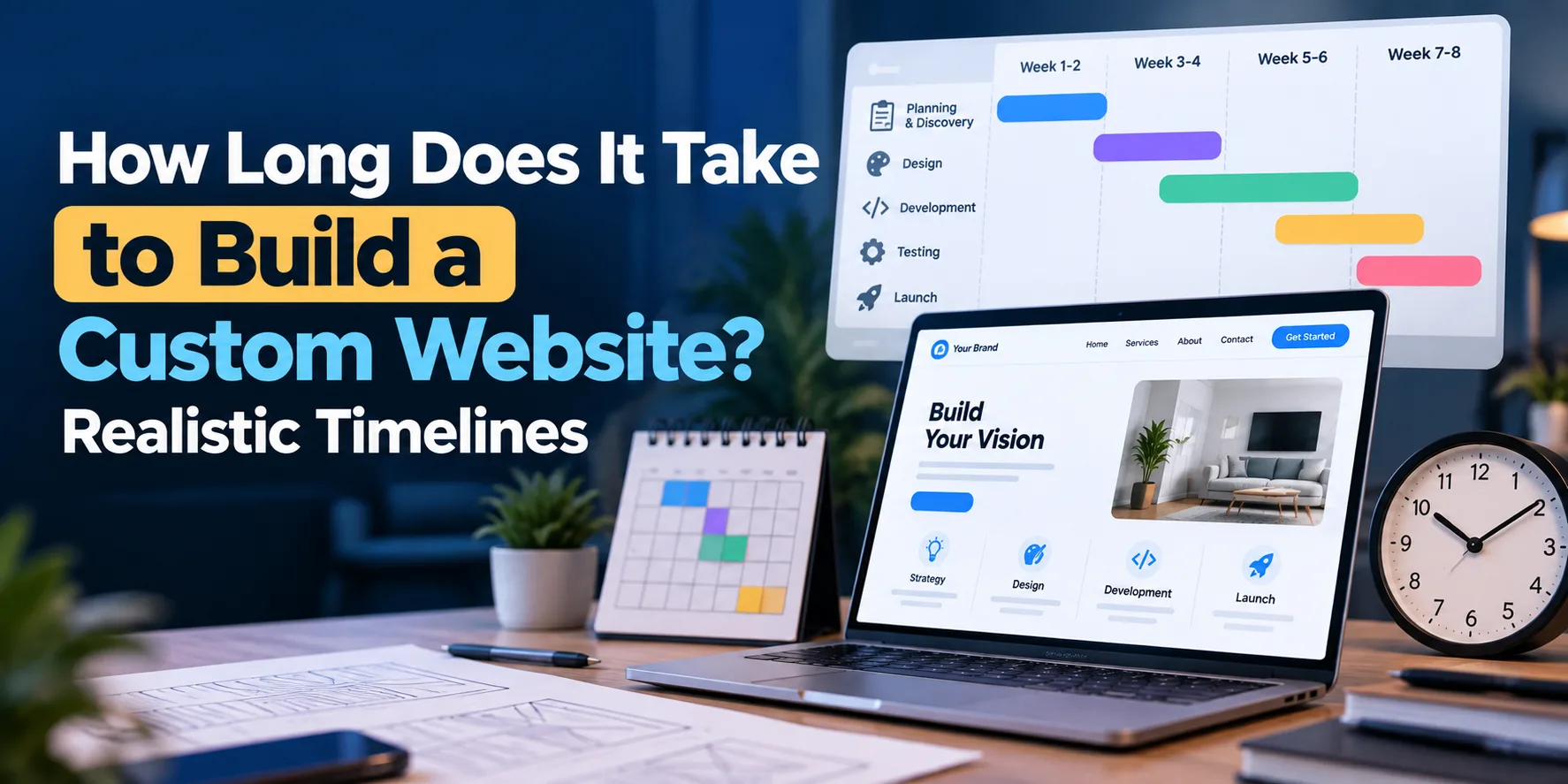 Development
How Long Does It Take to Build a Custom Website? Realistic Timelines
A realistic breakdown of custom website build timelines by project scope, the trade-offs between speed and flexibility, and the hidden…
 Development
Questions to Ask a Web Developer Before You Hire Them
Avoid unexpected costs, project delays and vendor lock-in. Here are the essential questions to ask a web developer about ownership,…
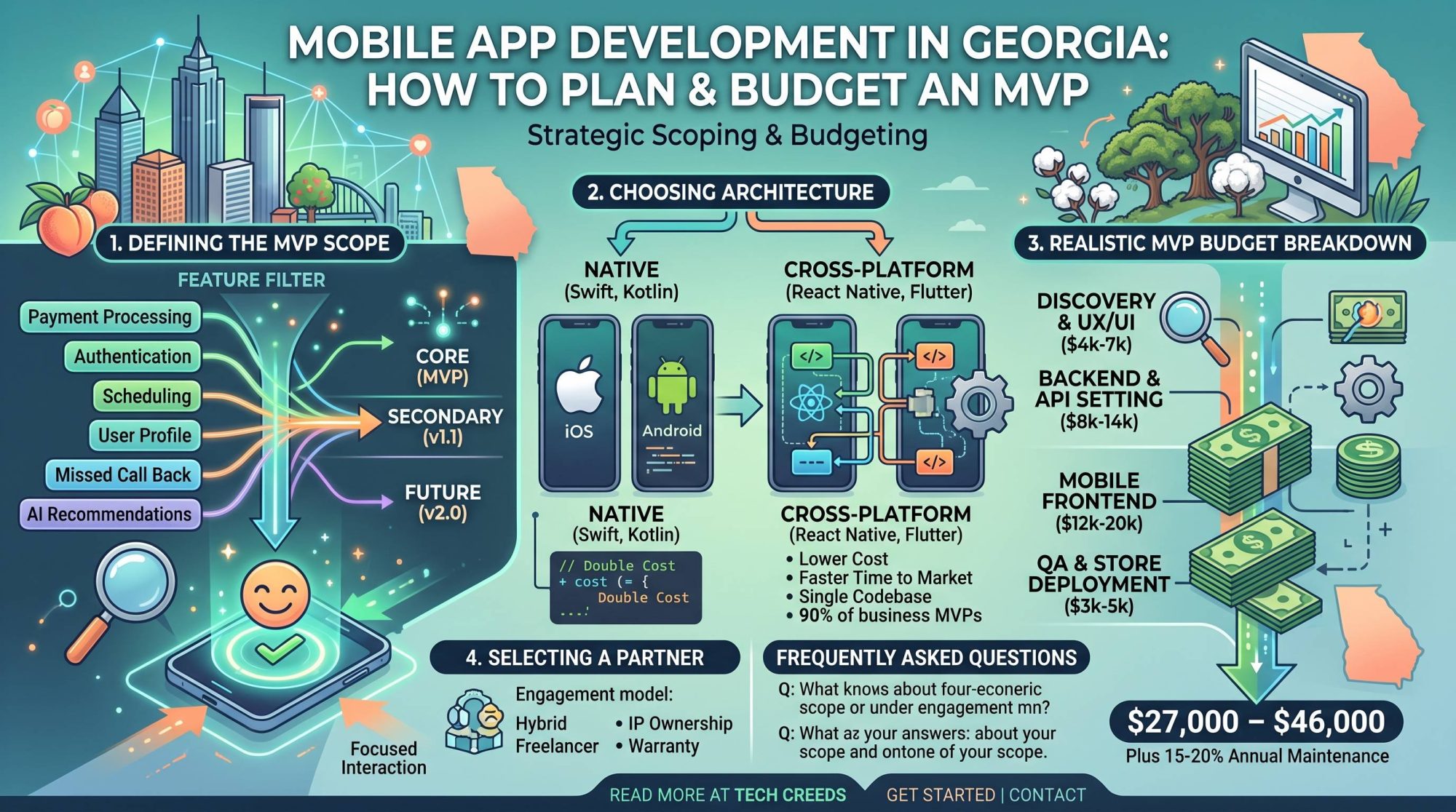 Development
Mobile App Development in Georgia: How to Plan and Budget an MVP
A practical guide for Georgia businesses planning their first mobile app. Learn how to scope an MVP, budget realistically, and…