How to Keep Zoho CRM Data Clean While Automating Follow‑Up

A CRM only works when the data inside it is accurate and up to date. If you automate follow‑ups on messy data, you risk sending the wrong message to the wrong person or missing opportunities altogether. The good news is that you can keep your Zoho CRM tidy and still reap the benefits of automation. Below is a step‑by‑step guide that focuses on hygiene, automated follow‑up, and useful integrations, written for a business owner or marketing lead who wants a clear, actionable answer.
Why CRM hygiene matters for automation
Automated workflows rely on triggers such as lead status, last contact date, or deal stage. If those fields contain outdated or duplicate information, the automation will fire at the wrong time or not at all. For example, a lead that has already been converted might still receive a nurturing email because the status field was never cleaned. Poor hygiene also makes reporting unreliable, which leads to misguided decisions.
Keeping data clean does not have to be a manual chore. By building a few routine checks into your CRM setup, you can prevent most issues before they affect your automation.
Building a clean data foundation
Start with the basics: deduplication, standardisation, and validation.
- Deduplication: Use Zoho’s built‑in duplicate detection rules to merge leads and contacts that share the same email or phone number. Run a weekly duplicate scan and review the suggested merges.
- Standardisation: Create pick‑lists for fields like lead source, industry, and rating. Enforce them through validation rules so users cannot enter free‑text values that break reporting.
- Validation: Set up mandatory fields for critical information (e.g., email, phone, company name) and use pattern validation to ensure phone numbers follow a consistent format.
A practical way to maintain this foundation is to schedule a monthly data‑health meeting. During the meeting, run the duplicate report, check pick‑list compliance, and address any validation errors that have accumulated. Treat it like a regular bookkeeping task rather than a one‑off project.
Setting up automated follow‑up in Zoho CRM
Once your data is reliable, you can design follow‑up automation that actually works.
- Define your follow‑up stages – Map out the typical journey from new lead to closed deal. Identify the points where a timely email, call, or task makes sense (e.g., after a demo request, after a proposal is sent).
- Create workflow rules – In Zoho CRM, go to Setup > Automation > Workflow Rules. Choose the module (Leads, Contacts, Deals) and set the trigger based on a clean field such as "Lead Status" or "Last Contact Date".
- Choose the action – Options include sending an email template, creating a task for a sales rep, or updating a field. Keep the email template personalised with merge fields that pull from validated data (e.g., first name, company).
- Add a time delay if needed – For nurture sequences, use the "Schedule Action" option to send a follow‑up two days after the initial trigger.
- Test with a small group – Activate the rule for a single user or a test lead first. Verify that the automation fires only when the data meets your hygiene standards.
Because the workflow depends on clean fields, the risk of sending irrelevant messages drops significantly.
Integrating with other tools for smarter follow‑up
Zoho CRM connects with many platforms through native integrations or via Zoho Flow. These links can enrich your data and trigger follow‑ups without manual entry.
- Email sync: Connect your Outlook or Gmail account so that every sent and received email is logged automatically against the corresponding contact. This keeps the "Last Contact Date" field accurate.
- Form tools: If you use Zoho Forms or a third‑party form builder, map the form submissions directly to leads or contacts. Use field mapping to ensure that data goes into the correct pick‑list fields.
- Accounting software: Integrate with Zoho Books or QuickBooks to sync invoice status. A workflow can then trigger a follow‑up task when an invoice remains unpaid for more than 15 days.
- Chatbots: Deploy a simple chatbot on your website that captures visitor questions and creates a lead in Zoho CRM. The chatbot can also tag the lead with a "website enquiry" source, keeping your lead‑source data consistent.
These integrations reduce the need for manual data entry, which is a common source of errors, and they keep the CRM updated in near real‑time.
Monitoring and maintaining hygiene over time
Automation is not a set‑and‑forget solution. Build a lightweight monitoring routine:
- Weekly health dashboard: Create a custom report that shows duplicate count, percentage of records with missing mandatory fields, and number of workflow triggers that failed due to empty fields. Share it with the team lead.
- User feedback loop: Ask sales reps to flag any automation that seems off (e.g., they received a follow‑up email for a lead they already closed). Use that feedback to adjust validation rules or workflow conditions.
- Quarterly review: Review your pick‑lists and validation rules to ensure they still match your business processes. Remove outdated values and add new ones as needed.
By treating hygiene as an ongoing habit, you ensure that your automated follow‑ups stay relevant and effective.
How a team would apply this
A sales manager would start by running Zoho’s duplicate detection tool and merging the top 50 duplicate leads. Next, they would define three key follow‑up stages (new lead, post‑demo, post‑proposal) and create corresponding workflow rules that send email templates and create tasks. They would then enable the Gmail sync so that all email activity is logged automatically, keeping the "Last Contact Date" field accurate. Finally, they would set up a weekly dashboard to track missing fields and duplicate counts, reviewing it in their team meeting to catch any issues early. This approach keeps the CRM reliable while reducing the manual effort required for follow‑up.
More from the blog
 AI & Automation
How to Automate Weekly Reporting Across Ads, CRM and Analytics
Stop wasting hours compiling manual spreadsheets. Learn how to connect ad platforms, CRM, and analytics into automated weekly reports, comparing…
 AI & Automation
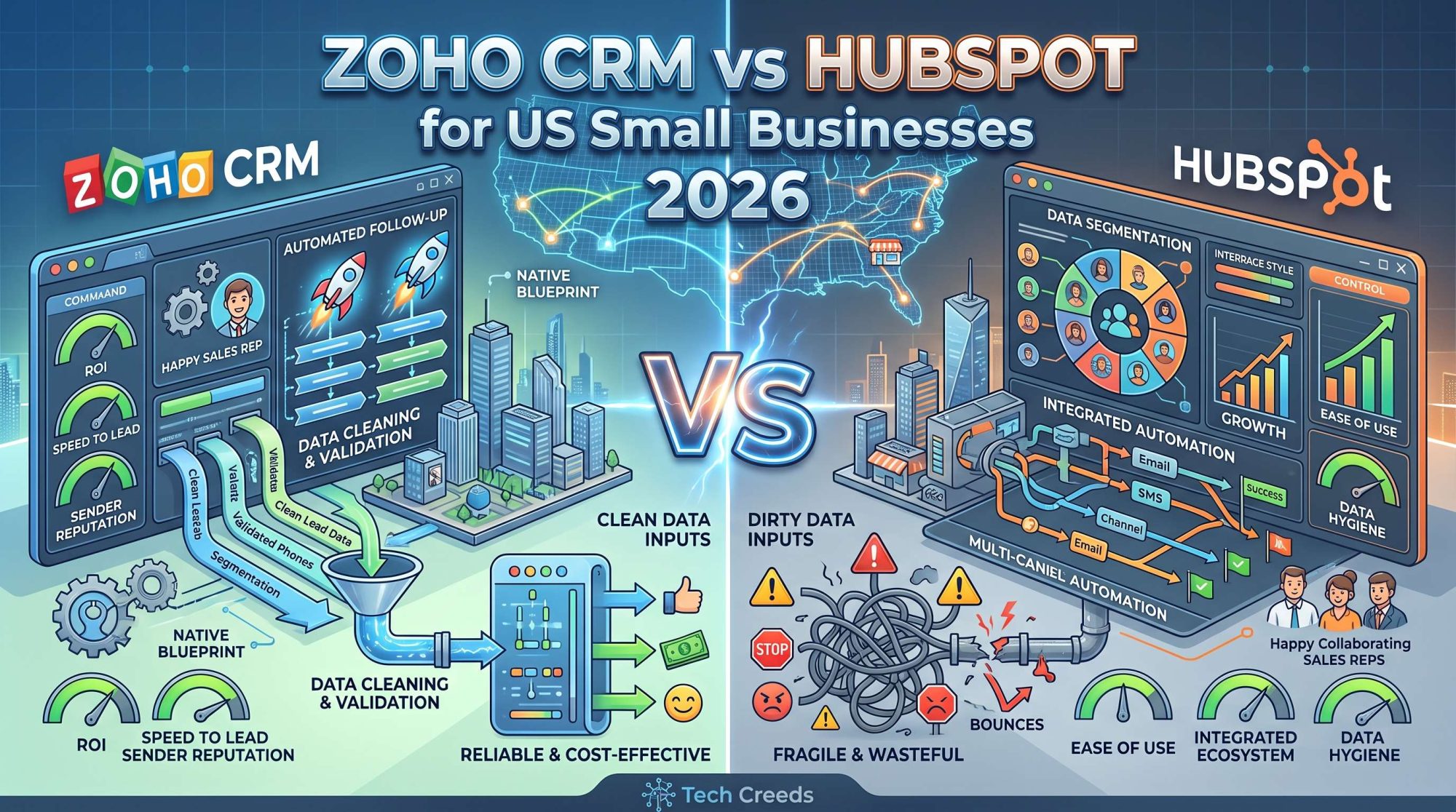
Zoho CRM vs HubSpot for US Small Businesses 2026
Compare Zoho CRM and HubSpot for US small businesses in 2026. Discover which platform offers better pricing, automation, and ease…
 AI & Automation
Is GoHighLevel Right for Small Businesses or Just Agencies?
GoHighLevel promises to replace your software stack, but setup complexity can add up. Here is how to decide whether it…